Transcripts
On this page
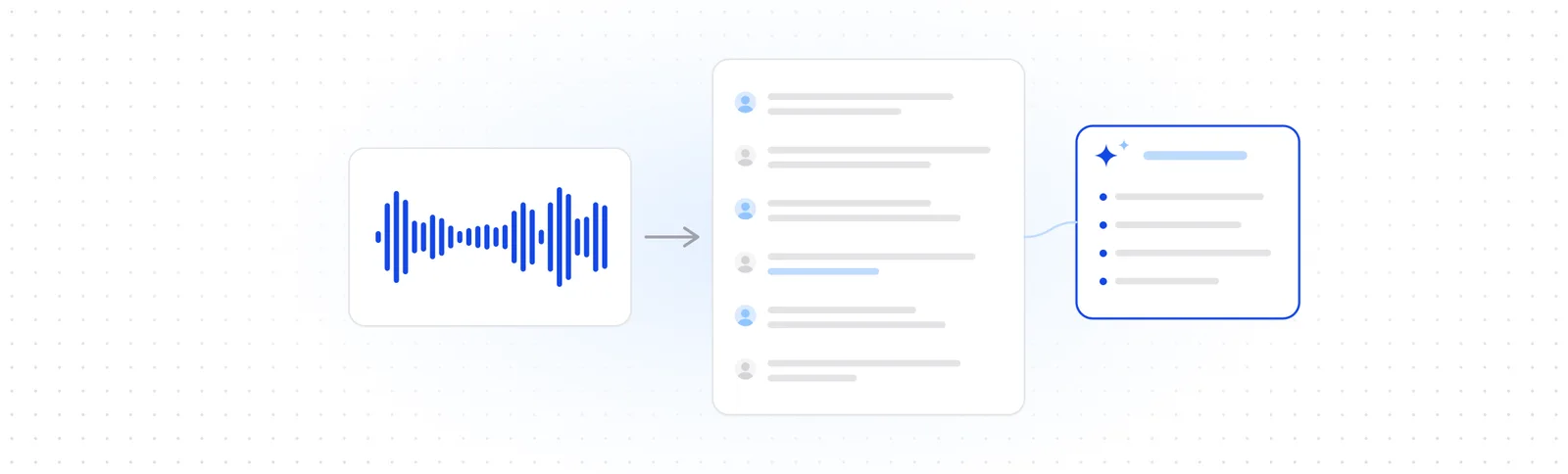
Transcribe any call, then search and analyze it with AI.
Store, share and reuse your insights - across the firm. You get automated transcripts of every call you run on Inex One, or upload to the platform. You can choose to share transcripts across the team, to move faster and ultimately waste less time & money repeating expert calls.
Transcripts are stored in projects, visible to all colleagues that are part of the project.
From the Transcript list you can:
- Add off-platform calls
- Open a transcript and its outputs in a full screen.
- Search transcripts by meaning, not just exact words, with semantic search.
- Select transcripts to chat with Ask AI.
The Transcripts list and the Transcript library are two different things. The Transcripts list shows the transcripts in a project. The Transcript library brings together every transcript you have access to, across all your projects.
Once we've received the audio recording, the transcript is usually ready within 10 minutes. Everyone on the project team gets a notification, and the transcript appears in the project's transcript list.
Inex One automatically detects the language of each call, and any non-English calls get outputs in both the original language and an English translation. If a transcript looks garbled, the language detection was most likely wrong. Press Re-run from the more actions menu and select the correct language.
We support transcripts in 103 languages, including all major ones. Regional variants of English, such as US, British and Australian English, are recognized automatically.
Transcribing on-platform calls
Calls held on Inex One's conferencing lines are recorded and transcribed automatically, unless you or the expert asks for it not to be. This comes at no extra cost, and you don't need to do anything to get the transcript.
If a call takes place outside of Inex One, e.g. your own Zoom link or if you're using off-platform networks, you can capture it by following the steps in Transcribing off-platform calls.
Transcribing off-platform calls
You can transcribe any call that relates to your project, not just the expert calls held on Inex One. That way, every conversation for a project is in one place, ready to search and chat with alongside your other transcripts. Plus, it builds your firm's Transcript library.
Call types
When adding a call, choose its type. It's important to choose the right one since our transcription outputs and sharing processes are tailored to each type.
| Call type | Examples |
|---|---|
Expert calls | Calls with experts from networks outside Inex One, or experts you've recruited yourself |
Meetings | External meetings, such as end-customer interviews, and internal meetings, such as steering committees |
For a meeting, you only add a title. For an expert call, you add slightly more:
- Expert details like name, title and company
- The source the expert came from, e.g. the expert network or "Other" if you e.g. recruited the expert yourself through LinkedIn outreach.
The expert details help us generate much better transcript outputs and the source keeps your team organized when you book follow-up calls with the same expert.
Three ways to add a call
To add an off-platform call, go to Transcripts in your project, press Add call and choose one of the methods:
- Send notetaker: send a white-label bot participant to your scheduled or live meeting. There's no file handling, and it gives the highest-quality transcripts.
- Upload audio: drop in any audio file and get a transcript. Clear, high-quality recordings give the best results.
- Record in browser: record the call in your browser. Sit in a quiet room and don't use headphones, so everyone on the call can be heard. This may give lower audio quality than the other methods.
Which one should you use?
| Situation | Best option |
|---|---|
A meeting you'll attend online, now or later | Send notetaker |
A recording you already have | Upload audio |
A call where you can't add a bot | Record in browser |
Send Notetaker
The notetaker is the simplest way to capture any meeting on Zoom, Microsoft Teams or Google Meet. It joins the meeting as a participant and records it, and the transcript appears in your project after the call, so you can focus on the conversation.
To send the notetaker to a meeting
- Open the relevant project, press Add call and choose Send notetaker.
- Paste the meeting url from Zoom, Teams or Google Meet.
- Send now or schedule for a call starting later, it will join once the call starts.
- Name the notetaker, this is how it shows to other meeting participants.
- Click Send
Some expert networks share branded meeting links, e.g. https://domain.meing.com/123abc, in their calendar invites instead of the underlying Zoom, Teams or Google Meet link. Open the branded link and it forwards you to the actual Zoom or Teams meeting link. Copy that link and give it to the notetaker.
After sending the notetaker, you'll see its status in the transcript list. You can edit the meeting link or cancel the notetaker any time before a call starts. If you sent the notetaker for a future call and it's moved, you need to update the call date.
| Status | Meaning |
|---|---|
Awaiting | Notetaker will join the call once it starts |
Joining | Notetaker is connecting to the call |
In waiting room | Host hasn't admitted the notetaker yet |
Recording | Call is currently being recorded |
Not Recording | In the call but host hasn't allowed recording |
Fatal | The notetaker failed, click to see the reason |
Upload audio
If you already have a recording of a call, upload it to get a transcript.
- Open the relevant project, press Add call and choose Upload audio.
- Drop your audio file, or click to choose one.
- Insert the call data (e.g. type and date) and press transcribe.
Worth knowing
- Clear, high-quality recordings give the best results.
- Files can be up to 2,600 MB. Audio only, text transcripts can't be uploaded.
- Transcription picks up keywords relevant to your project, such as company names.
Record in browser
If you're on a call where you can't add the notetaker, you can record it straight from your browser. Inex One captures the conversation through your computer's microphone and speakers, so sit in a quiet room to minimize background noise and don't use headphones.
Conduct a browser recording
- Open the relevant project, press Add call and choose Record in browser.
- Allow microphone access when your browser asks for permission, so we can capture the call. You can choose which microphone to use.
- Start recording, have the conversation, and stop the recording when the call ends. You can pause the recording at any time.
- Review and transcribe: listen back to the recording, trim it if needed, and press Transcribe. Your audio is only uploaded when you press Transcribe.
Losing connection mid-call
Losing your internet connection doesn't stop a recording, because the audio is captured in your browser. Keep the tab open, finish recording and reconnect before you press Transcribe. If the upload itself from your browser to Inex One is interrupted, you will see "Unsaved recording" in your transcript list, Review or Discard it.
Transcript outputs: Full, Cleaned, Summary
Once a call is processed, we generate 3 output tabs:
- Summary: the most important points of the call, grouped into themes.
- Cleaned: the call structured into question and answer pairs
- Full: the entire transcript, word-by-word
The Summary and Cleaned outputs reference citations from the Full transcript, allowing you to trace any statements back to the original source.
For each tab, you can copy its content to your clipboard or keyword search across it. For non-English calls, a button allows you to toggle between the original and translated versions.
Every transcript carries a status tag throughout its life cycle:
| Status | What it means |
|---|---|
Scheduled | A booked call that hasn't started yet |
Ongoing | The call is happening right now |
Processing | The outputs are being generated |
Failed | Transcription failed, see further details in the error note |
Skipped | No spoken audio or only one participant type (expert or client) |
Not transcribed | Expert declined to be recorded or the call is on an external meeting link |
If you transcribed off-platform calls, you may see statuses specific to the method used to add a call. See more under each method.
Semantic search
Semantic search allows you to search by meaning, not just exact keywords, across every transcript in a project at once. So a search for "churn" also finds calls talking about customers cancelling their contracts.
- Describe what you're looking for: type a word, a phrase or a short description, such as "pricing pressure from new entrants".
- Review the results: you get one card per transcript, with the most relevant first. Each card shows the matching questions and answers from the Cleaned transcript, with timestamps to open that moment in the Full transcript. A transcript can have several matching question-and-answer pairs.
To fine-tune your results, you can filter the transcripts to only include certain call types, dates, etc.
Semantic search and AI chat do different jobs
Search finds the passages where something was said, so you can read the exact words. AI Insights chat answers a question by bringing together what several calls said.
Worth knowing
- Describe the idea in plain words rather than guessing the exact phrase used. People rarely use the term you had in mind.
- Search in a project only covers that project's transcripts. To search across all the transcripts you have access to, use the Transcript library.
AI Insights
You can query several transcripts at once with Ask AI. It answers questions about your project's calls in plain language, based on what was actually said.
- Choose transcripts: select one or several, in the input box or from the transcript list.
- Ask your question: type it the way you'd ask a colleague, for example "What did customers say about switching costs?"
- Check the sources: every answer comes with citations, so you can see where each point comes from.
Working with answers
- Quotes: answers quote what was said on the calls, so you see the exact words behind each point.
- Sources: open the sources panel on the right to see what an answer is based on. Hover over a source to see the exact sentence from the Full transcript, or click it to go to that moment.
Your chats are personal. Only you can see the chats you start, even though everyone on the project team can see the same transcripts.
Your recent chats are listed on the left, where you can also start a new chat or delete one.
Worth knowing
- AI Insights only draws on the transcripts you selected in this project. It never searches the internet.
- To ask questions across all the transcripts you have access to, in every project, use Transcript library.
Questions
Questions about privacy, storage and who can see your transcripts are answered in the Transcripts FAQ.